
This article covers how to suppress the sending of the automated donor confirmation emails for donations entered by staff users.
To suppress all donor confirmation emails for a donor:
- From the iMIS Staff site
- Go to the Donor Profile page
- Edit the Donor Info panel
- Check the box for Do not send email confirmations
To suppress a donor confirmation email for a single gift:
From the iMIS Staff Site:
- Go to the Enter Gifts page in the Fundraising section
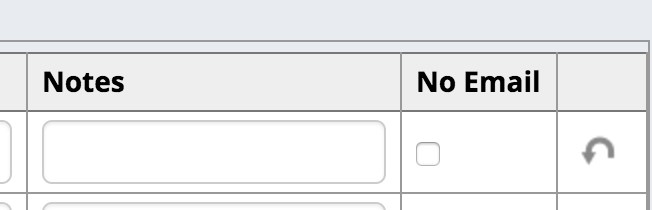
- On the Gift Entry line, check the No Email box at the end of the row.
From iMIS Desktop:
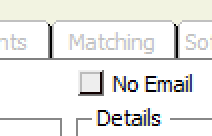
- Check the No Email box on the Enter and edit gifts screen
Comments
0 comments
Please sign in to leave a comment.