
Voided credit card transactions can happen when a user encounters an error during the checkout (payment) process. It is important that the PayFlowPro (Paypal) account be monitored for this daily, and that the necessary action is taken when a voided transaction happens.
How to run the Voided Transaction report in PayPal (daily)
This report identifies any voided transactions that occurred on the previous day. It is scheduled to run nightly and is available to pick up first thing in the morning.
- Log onto the PayPal manager
- Click on Reports
- Click on Retrieve Reports
- In the table called Retrieve Reports for Live Transaction. Look for the Scheduled Daily Reports section. You will see a row for Voided Transactions
- Look on that row under the Action column. If it says view, there is a report with voids, click on the link. If it says No Records Found, there were no voids.
- When the report runs, you can determine which member it applies to by looking at the Comment 1 column.
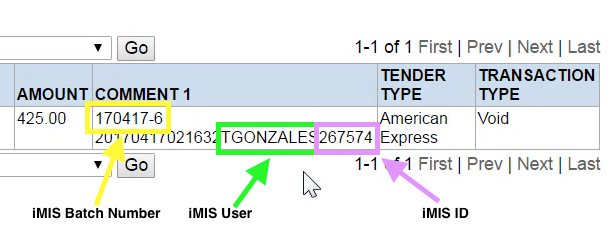
Reversing the voided transaction in iMIS
Once a void has been identified, the corresponding payment in iMIS must be reversed. Please be aware that the amount of the payment may not be the same amount as the authorization amount. This is because iMIS only creates that payment for the subscription records that did not produce an error. Match the payment amount on the Batch Number and the member ID.
- Log into iMIS Desktop
- Go to Customers
- Find the member
- Click on the Billing tab
- Click on Payments
- You should see the payment corresponding with the voided transaction. Make a note of the amount and the subscriptions that were paid for.
- Enter a new payment. In the Pay Amount field, enter a negative amount in the same amount as the payment as noted in step 6.
- Enter a negative amount for all of the subscription line items that were previously paid for. Enter the negative amount in the Amt. Paid column.
- Press Save.
The voided payment has now been reversed in iMIS. The member now needs to be contacted for a new payment.
Comments
0 comments
Please sign in to leave a comment.