
Account notes must be added any time a non-routine transaction is made for a contact. Examples of non-routine transactions:
- Cancellation of an Order, Event Registration or Membership
- Merging records
- Adjustments (Credit/Debit memos, Change in Event Fees, Change in Membership Fees
- Returned Check
- Declined Credit Card
How to view account notes
If an account note exists for a contact, an alert will display at the top of the contact's record in the staff site.

To review the note, click on the Transactions tab and scroll down to the Account Notes panel. You can click on the pencil icon to view in a pop up window. Click the icon under attachments to download and view the attachment.

How to add account notes
- Open a member record in the staff site
- Click on the Transactions tab
- At the top of the Account Notes panel, click the +

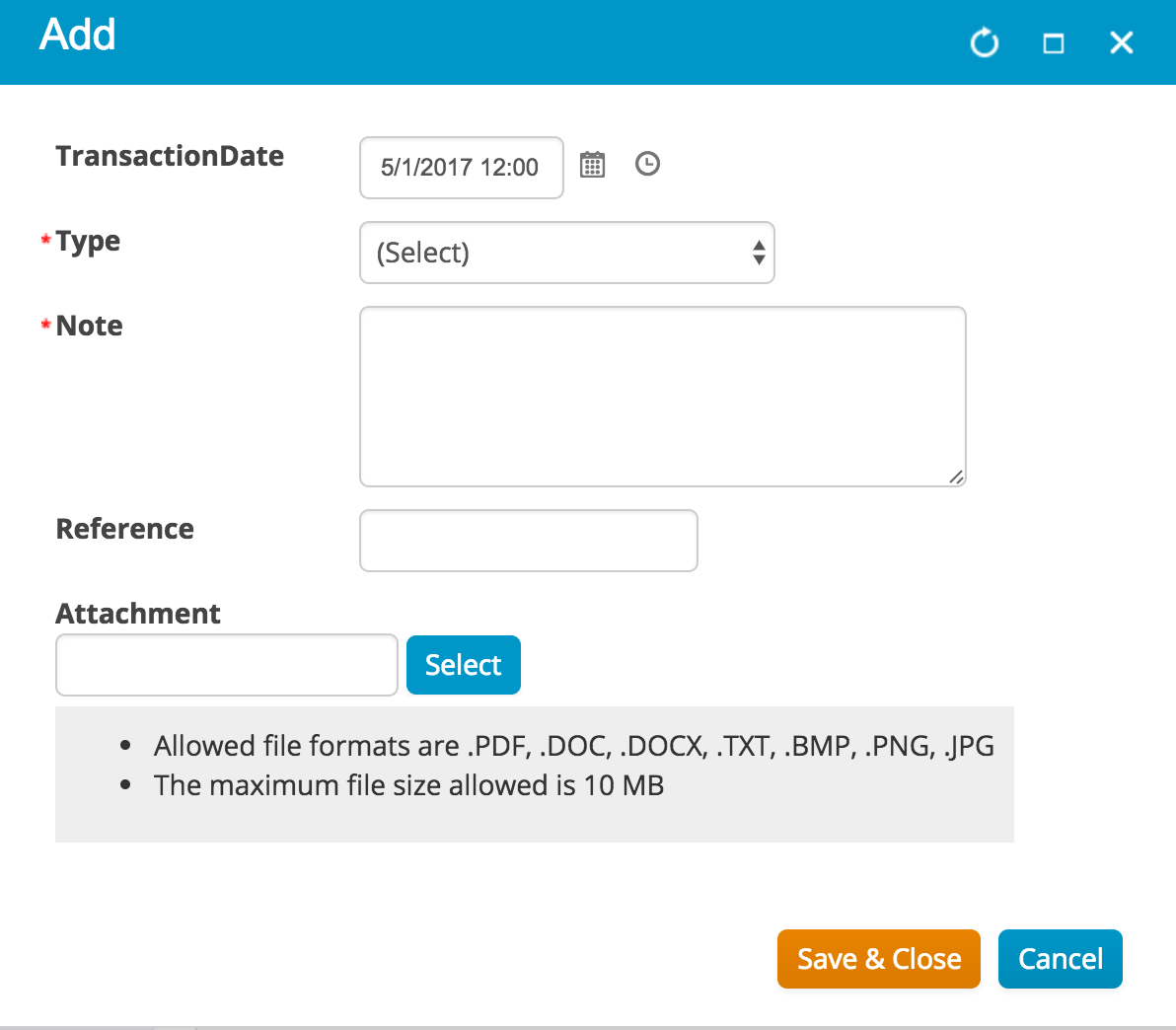
- In the window that pops up enter the following:
- Transaction Date: select the current date (click on the calendar)
- Type - the type of transaction or change made
- Note - enter the reason for the transaction or change and the desired outcome. Be as descriptive as possible as this may need to be interpreted a year or two after you enter it
- Reference - enter a reference if applicable, example references are Order Number, Invoice Number, Check Number etc.
- Attachment - attach any backup documentation
- Press Save
Comments
0 comments
Please sign in to leave a comment.