
How to open the company list
Find the One Bill firm record in the iMIS Staff Site.
Click on Company list
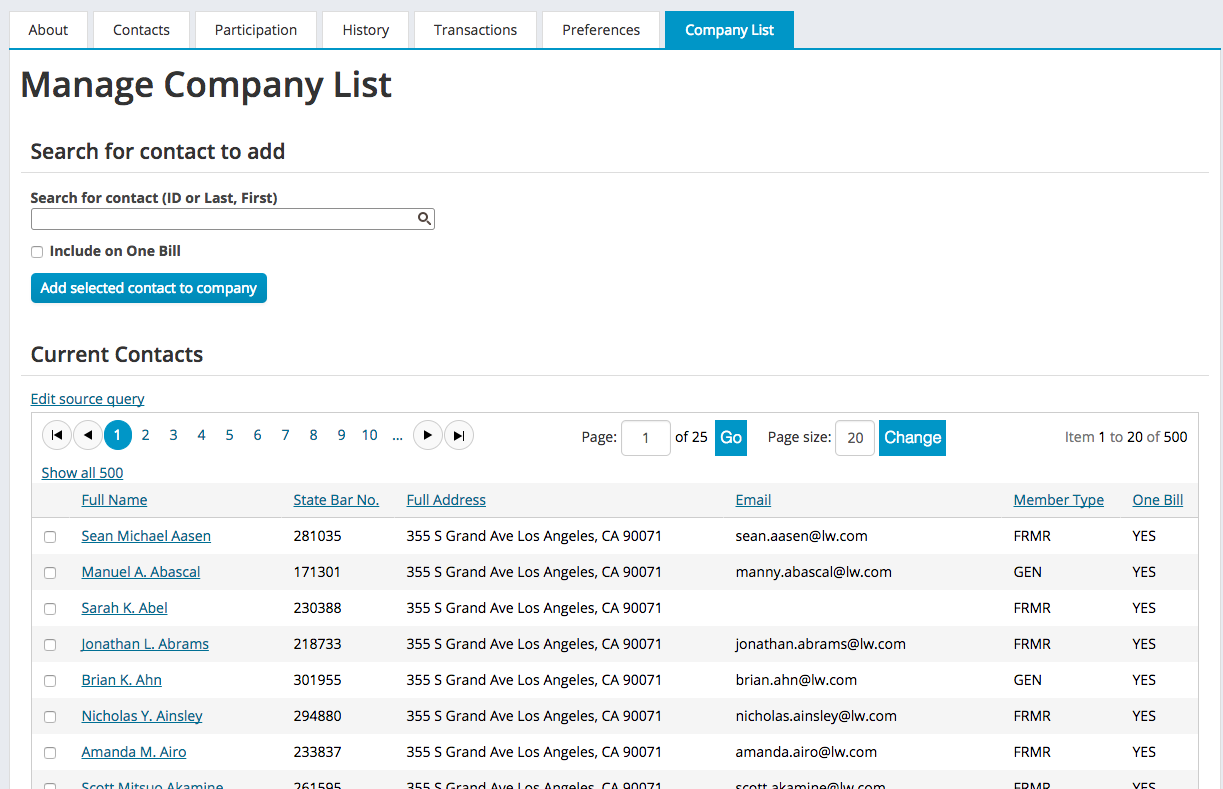
This screen displays all of the contacts that are associated with the firm. The One Bill column indicates if they will be included in the One Bill process or not.
How to modify contacts on the list
You can modify a contact's relationship with the firm by checking the box next to the contact's name. You can select multiple contacts to modify at one time. Be aware that all contacts you select will be modified in the same way.
Types of modifications:
- Remove from Company - use this option if the contact no long works for the firm. This option will remove the company name from the record and remove the link from the company. The Bill to ID will be removed. It will also place them in a queue so LACBA staff can research them with the state bar.
- Exclude from One Bill - use this option if the contact will stay with the firm but will not be included in the One Bill process. This option marks the record to be excluded from One Bill and removes the Bill to ID from the contact's record. The contact remains linked to the firm.
- Include in One Bill - use this option to include a contact in the One Bill that had been previously excluded. This option removes the Exclude from One Bill flag and sets the Bill to ID of the contact to the Firm's ID.
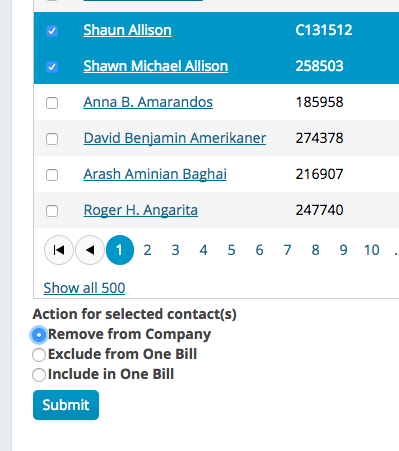
Once you have selected the contacts you wish to modify and selected an action, click submit to apply the modification to the selected contacts.
How to add contacts to the list
At the top of the Company List tab is a search box that allows you to search for contacts
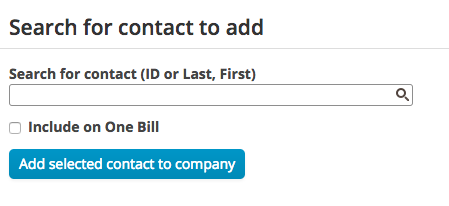
Click into the search field and begin typing, you can type the iMIS ID or the name of the contact (Last, First). You don't have to type the whole name, just enough so you can find it in the list.
NOTE: Only contacts that have an email address which matches the firm's domain name will appear in the search. To set up the firm's domain name, see How to set up a One Bill firm.
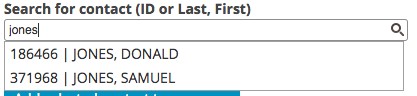
From the list that appears, select the contact that you wish to add. If you want this contact to be included in the One Bill, check the Include on One Bill box.
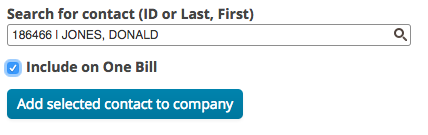
Press Add selected contact to company. The contact will be linked to the company and the company name will be copied to the contact record. If you are including this contact on the One Bill, the Bill to ID of the contact will be updated to the company's ID.
How to export the company list
To export the company list, click the Open Company List for Export button. A window will pop up containing the company list.
Click the Export button and choose the type of export you would like. The list will be downloaded.

Comments
0 comments
Please sign in to leave a comment.